How to Use WordPress
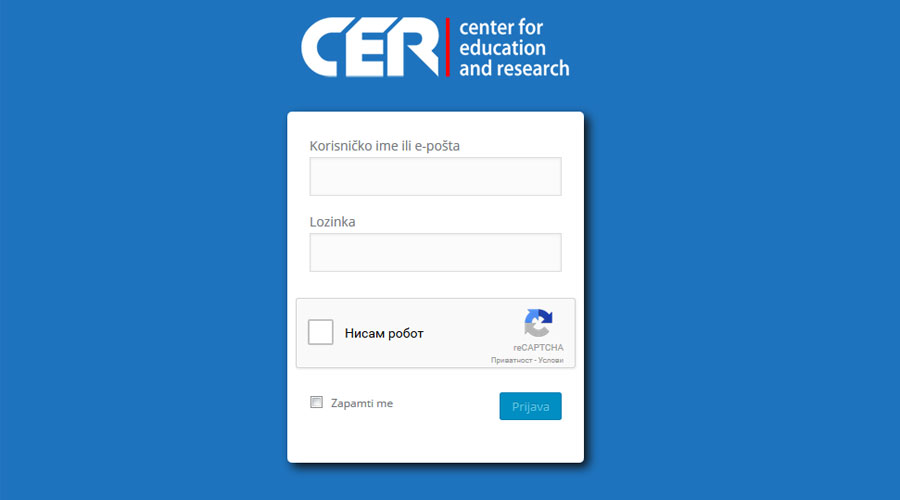
Connecting to the WordPress system To access the login page, use the following address: http://www.imefirme.com/prijava Of course, in this example, replace mysite with your website address. A page for entering your details will appear: the username and password you were given. After entering the correct details and clicking Log in, you will have
Connecting to the WordPress system
To access the merge page, you must use the following address: http://www.imefirme.com/prijava
Of course, in this example, replace mojsajt with your website address.
A page for entering your username and password will appear; these are the credentials you were given.
After entering the correct information and clicking Log In, you gained access to WordPress, the content management system.
Other users who have the appropriate rights will connect to the system in the same way.
Dashboard
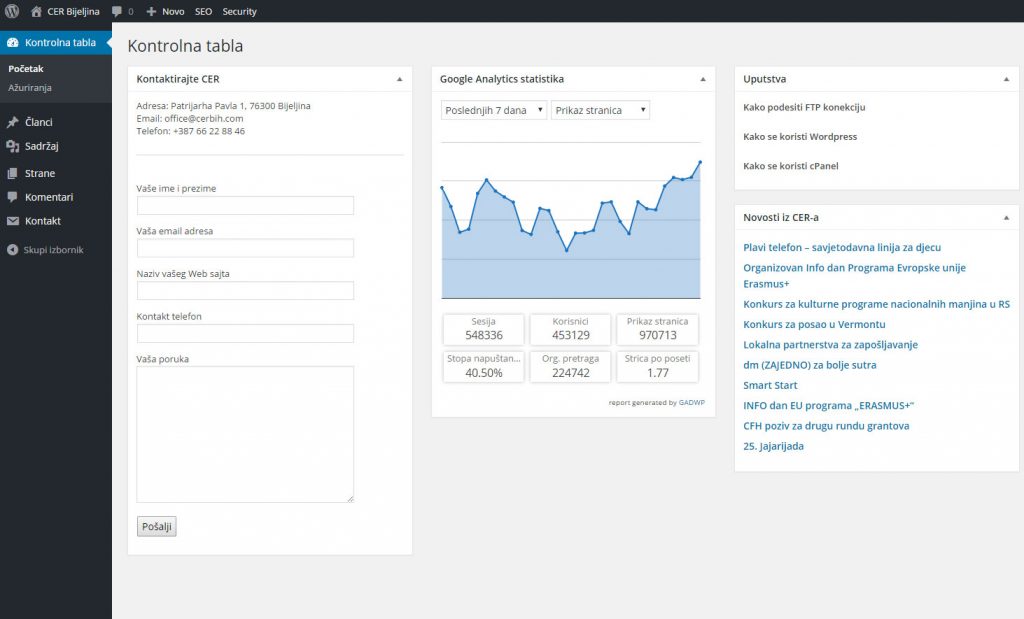
The Dashboard is the central hub of WordPress. If you are an administrator—that is, a person with the highest level of permissions—you have access to all available sections, most of which are not available to other users. You can use them to add new content and edit existing content, expand your website with plugins and tools, create new users, and more.
Depending on what you want to add to your website, select the appropriate item from the menu.
Adding new content
WordPress has two main types of content:
- Pages (Static Pages) and
- Articles (News, ...).
The article or page can, of course, contain images, videos, and various formatting. Once written, an article or page can be edited, refined, saved for future publication, or deleted. If your role is different from that of an administrator, you will have the permissions described earlier.
Add a new article
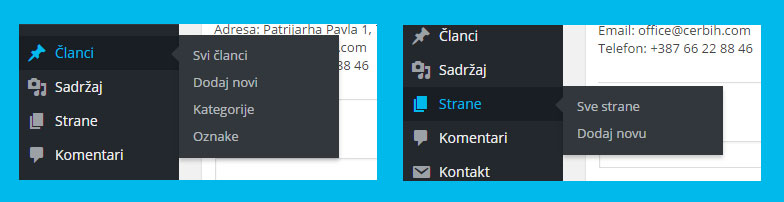
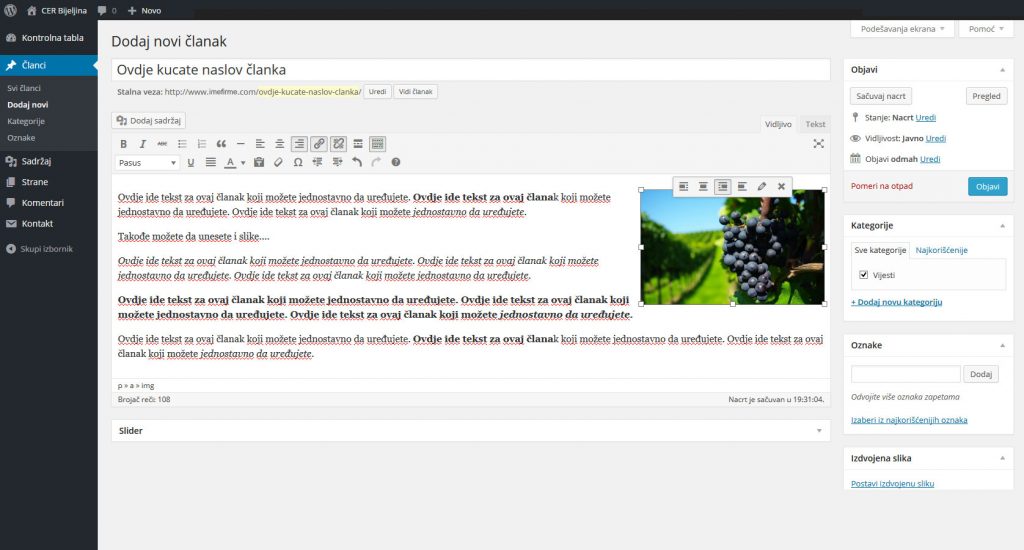
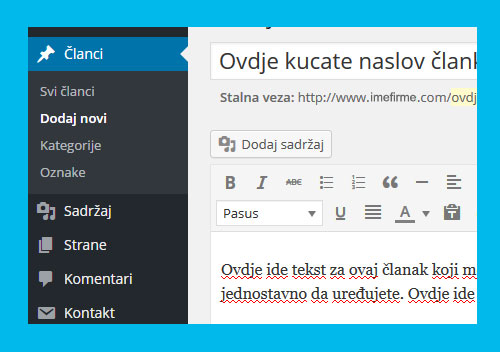
To add a new Article, select from the menu Articles, and then Add New. A window like the one in the image will open in front of you.
Add a title, content, etc., and edit the article text as desired.
To save, press the button Publish.
Note that above the Publish button there is a section where you can click to Edit set the publication date of your article.
This is especially useful if you write an article in advance that you will publish in the future because, for some reason, you will not be able to write an article then.
Editing existing articles
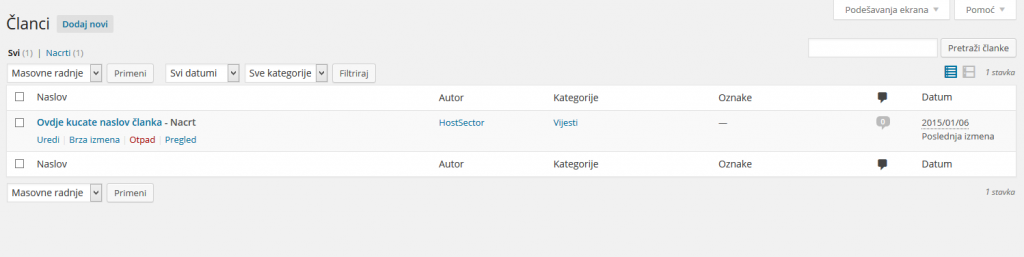
To edit the content of previously written articles, select Articles, then hover over the article you want to edit or modify. Option Edit allows you to open the entire article, as it appeared when you wrote it. For quick edits, use Quick Edit. Waste deletes your article, while the option Overview you can view the article.
If you want to make minor changes that are technical rather than substantive, select Quick Edit:
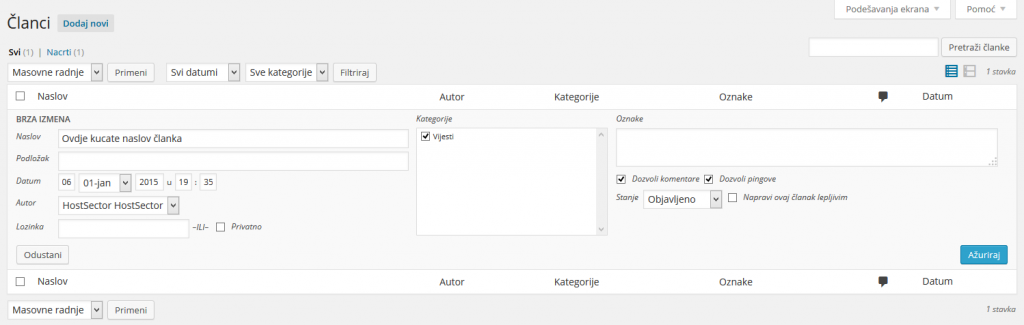
You can change this through this window title, select categories, change date posts or add password if you want your article to be available only to those who know the password for reading the article itself.
If the option Private If enabled, the article will not appear on the homepage or be accessible anywhere in the system unless someone has the article's direct address.
You can also allow or prohibit comments. If you do not want comments to be possible below your articles or pages, disable them by unchecking the box. Allow comments .
Finally, confirm your selection by clicking Update.
If you had selected the Edit option, you would also have updated the content after making the desired changes.
Adding and Editing Pages
Editing a page is done in the same way as editing articles, but there are fewer options (no categories, tags, etc.).
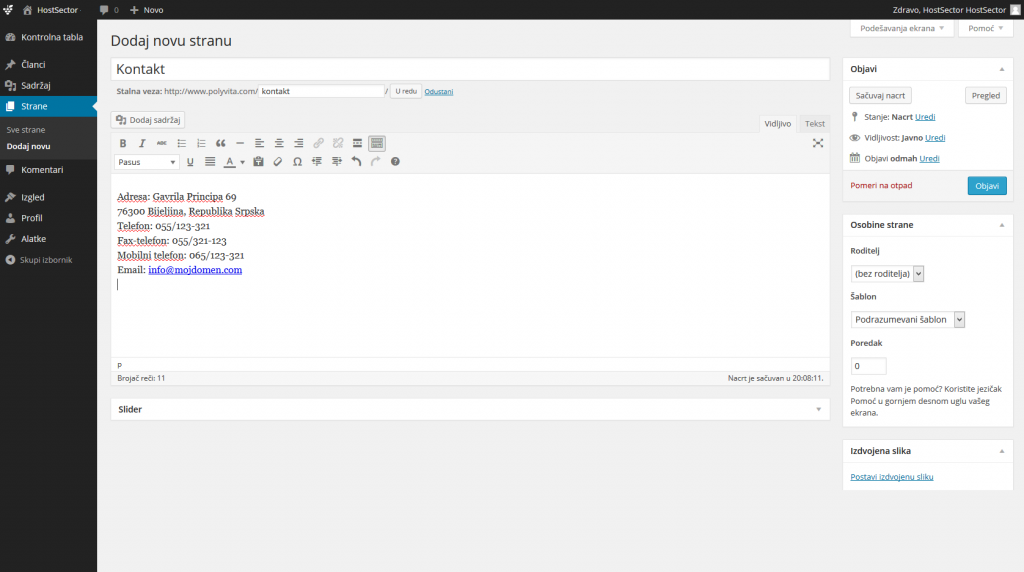 After entering the page title and content, under Page attributes select a position in the menu: to publish in the main menu, select No parents (no‐parent), and to make an item a sub-item in a menu, select that item. Under Order select a position in the menu itself, 0 is the top-level item or the far-left item, and as the number increases, the item moves down within the menu or shifts to the right (depending on whether the menu is vertical or horizontal).
Finally, click the button Publish (publish) and your page is now active and accessible from the menu
How do I add an image, video, or other multimedia document?
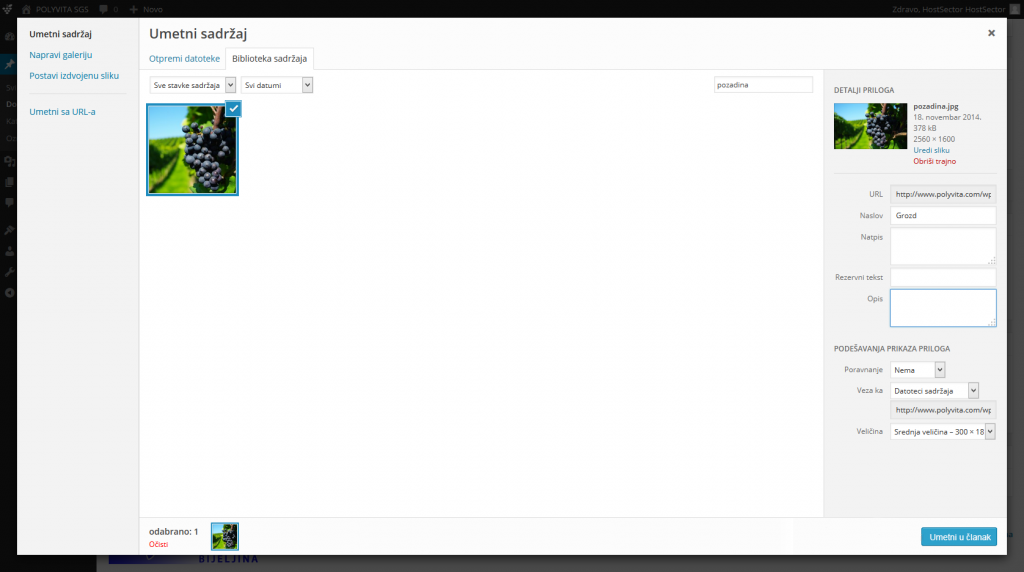
To add multimedia documents (especially images), place the cursor where you want the image to appear, then click the button in the toolbar Add content.
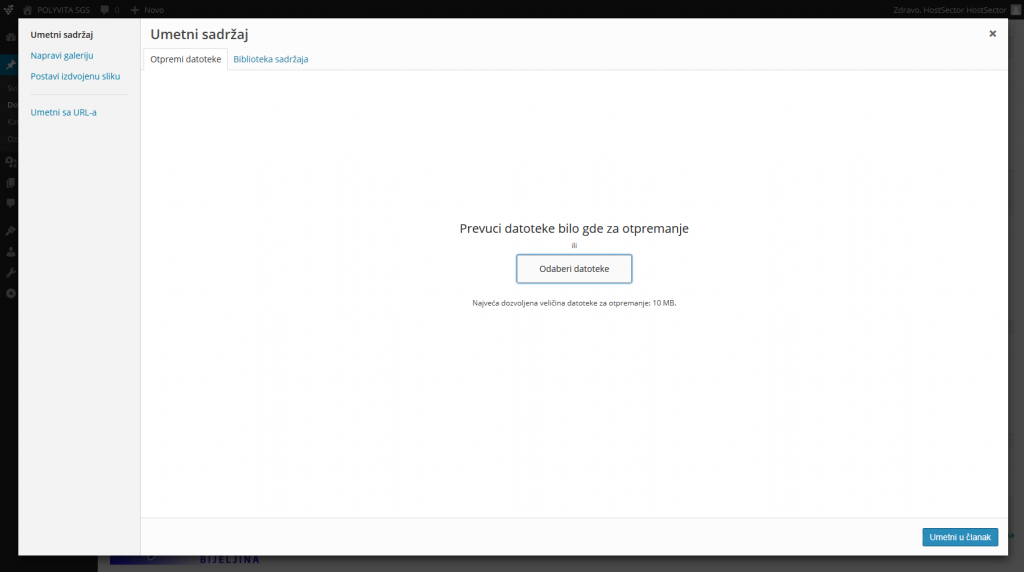
In the additional window, you can select a file from your computer, from a URL, from the Gallery (files you previously uploaded to WordPress as an automatic gallery), or from the Media Library (an individual file you previously added).
For SEO purposes, it would be good to enter again Title (Title) of the image, and Caption (Alternative Text).
Placeholder text is the text directly below the image itself. You can align the image inline with the text (none), to the left (left), to the right (right), or in the center (center).
You can also choose the image size within the article. You can change all these settings later as well. When you are happy with your selection and settings, click Insert into article.
Option Set featured image allows you to insert the selected image into the slider on your page.