
How to Configure FTP
FTP stands for File Transfer Protocol. Using this protocol, you can make changes to your Web presentation. You can access it via FTP with one of the many FTP clients. We recommend FileZilla. General instructions for setting up an FTP connection: Select your FTP client. In the Host fields, enter your domain name. (www.imefirme.com). In the fields
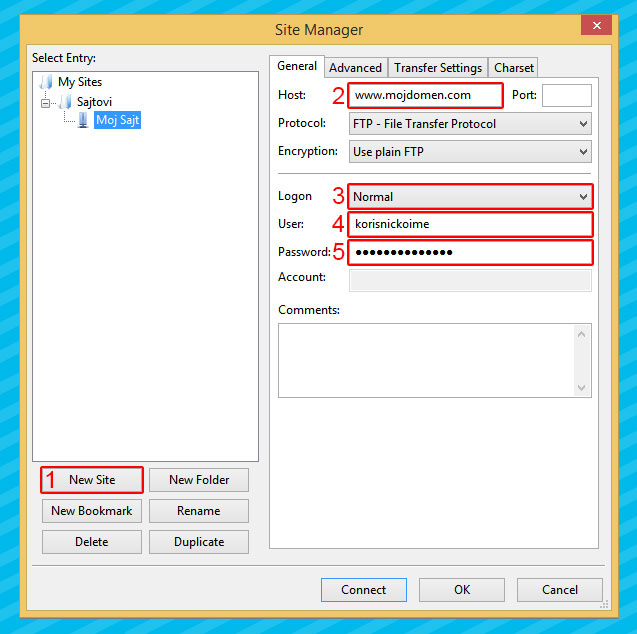
FTP stands for File Transfer Protocol. Using this protocol, you can make changes to your website.
You can access FTP using one of the many FTP clients.
We recommend FileZilla-u.
The general instructions for setting up an FTP connection are as follows:
- Choose your FTP client.
- In the sections for Host enter your domain name. (www.imefirme.com).
- In the sections for Username and Password enter the username and password you received when registering.
- Default Port for connecting to the FTP server is 21.
- If PASSIVE mode is enabled, disable it.
- A firewall and/or antivirus software may block the connection.
- It needs to be configured to allow the FTP protocol.
- If you experience connection problems, temporarily disable it.
Also, check whether your internet plan imposes restrictions on the ports it allows.
After that, you can connect to your FTP account and upload your presentation to public_html directory. It is important for the home page to be named index.html, index.htm or index.php so that the presentation is visible when your address is accessed.